Troubleshoot Events
Events is in developer preview on the unstable API version, available today for a subset of topics. Use it for early testing ahead of a stable release and broader topic coverage. For topics not yet supported, use webhooks alongside Events in the same shopify.app.toml. As Events expands topic coverage, it will become the primary subscription mechanism.
Events is in developer preview on the unstable API version, available today for a subset of topics. Use it for early testing ahead of a stable release and broader topic coverage. For topics not yet supported, use webhooks alongside Events in the same shopify.app.toml. As Events expands topic coverage, it will become the primary subscription mechanism.
If your app uses Events, monitor for and respond to failed delivery notifications. Shopify retries failed deliveries automatically. If your endpoint continues to fail, deliveries for that subscription stop being attempted.
If your app was created in the Dev Dashboard or using Shopify CLI, you can use the delivery metrics report to troubleshoot delivery failures and view performance data.
This guide shows you how to use the metrics report to track failed deliveries and fix them before they affect app users.
Anchor to Monitor performanceMonitor performance
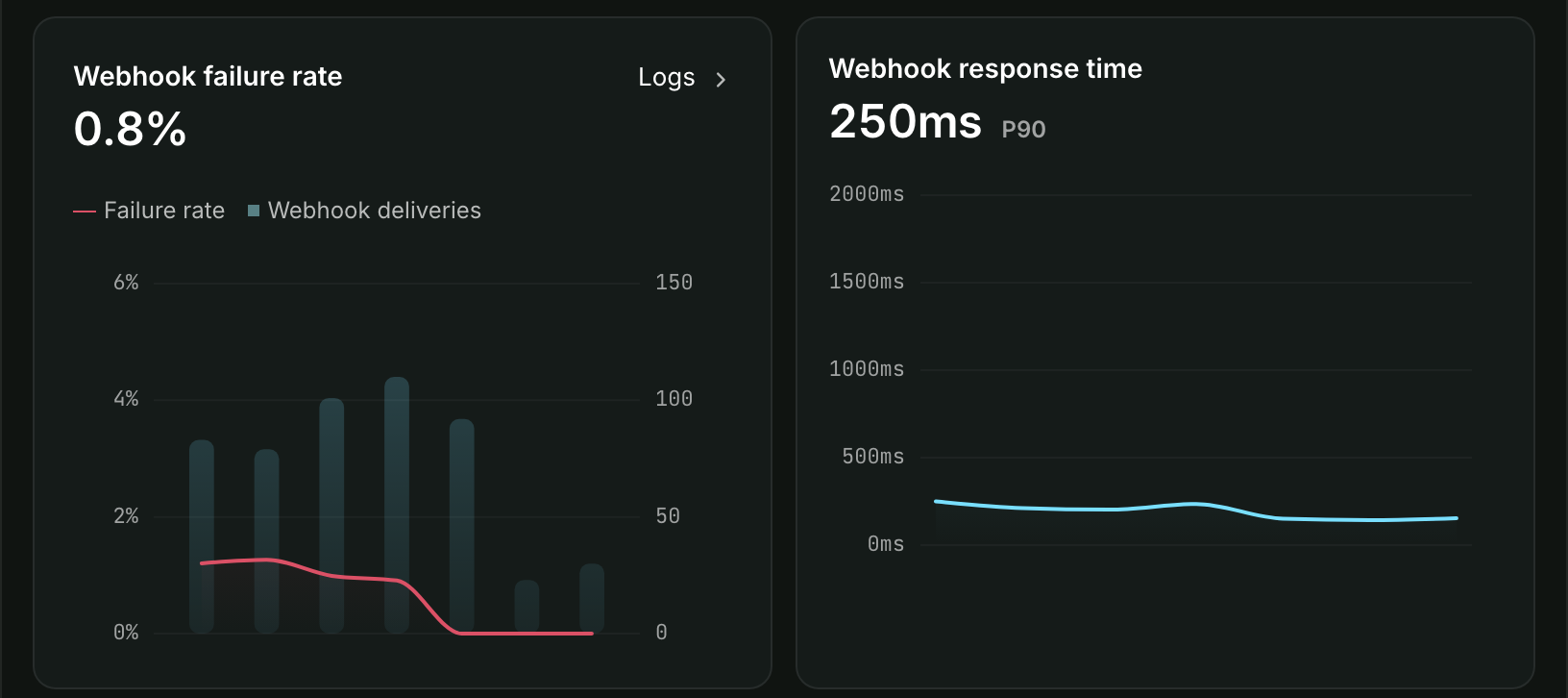
Your app's Overview page shows delivery counts and response time over the selected time range. For an overview of all monitoring tools in the Dev Dashboard, see Monitoring and logs.
- From your Dev Dashboard, click Apps.
- Click the name of your app.
- In the sidebar, click Overview.
You can manually trigger an Event to check delivery metrics by updating your dev store. For example, create or update a product to trigger a Product event.
You can manually trigger an Event to check delivery metrics by updating your dev store. For example, create or update a product to trigger a Product event.
Change the time range for the charts using the dropdown on the Operations card. To filter deliveries by topic, shop, or status, use the Logs view.
From this view you can inspect the following plots:
- Deliveries: Successful deliveries as bars, with the failure rate as a line, over the selected time range.
- Response time: Your app's 90th percentile response time over the selected time range.
The charts report the following metrics:
| Metric | Description |
|---|---|
| Failed delivery rate | The percentage of unsuccessful delivery attempts out of the total number of delivery attempts. |
| Deliveries | Successful delivery attempts across all subscriptions. Failed attempts are counted in the failed delivery rate instead of this series. |
| Response time | The 90th percentile of your app's response time. 90% of responses were equal to or faster than the listed time. |
From the Overview page, you can also view your app's delivery logs and delivery details.
Anchor to View delivery logsView delivery logs
The Logs page shows individual deliveries filterable by topic, status, and destination shop over the past 7 days.
- From your Dev Dashboard, click Apps.
- Click the name of your app.
- In the sidebar, click Logs.
The delivery logs dashboard doesn't provide real-time updates. Data could be delayed up to several minutes.
The delivery logs dashboard doesn't provide real-time updates. Data could be delayed up to several minutes.
Set the time range with the dropdown, then narrow the list in the Filter logs field. Each filter is a dimension and a value, such as Type is Webhook or Topic is Product, and you can combine several. Refer to Filtering logs.
The delivery logs list the following information:
| Field | Description |
|---|---|
| Response | The response code your app sent when it received the webhook. |
| Topic | The topic the subscription is listening to. |
| Shop | The URL of the Shopify store associated with the delivery. |
| Time | The date and time of the most recent delivery attempt. |
Anchor to Responses and retriesResponses and retries
A 200 series status response is considered successful.
If your app has a high rate of successful responses, then the logs display a sample representation of successful responses.
If your app doesn't respond with a 200 series status code, the delivery has failed.
Shopify retries failed deliveries automatically.
Anchor to Prioritize fixesPrioritize fixes
Use the response code and retry count to decide which subscriptions to fix first. Prioritize subscriptions with any of the following:
- Delivery failed after retries: Once Shopify exhausts its retry attempts, it stops trying to deliver the event. You might need to reconcile any missing data.
- High failure rates on a single subscription: A high rate on one subscription may indicate a handler-specific or payload-specific error.
- High failure rates across all subscriptions: If all your subscriptions have a high failure rate, your backend may not be responding. Use your monitoring tools to investigate.
Anchor to View delivery detailsView delivery details
When you click a delivery from the Logs page, a panel opens with the following information:
The details panel lists the following information for each delivery:
| Field | Description |
|---|---|
| Topic | The topic the subscription is listening to. |
| URI | The endpoint the delivery was sent to. |
| Subscription method | How the subscription was created, for example App specific. |
| API version | The API version configured in your [events] block. |
| Subscription ID | The ID of the subscription. |
| Handle | The handle you assigned to the subscription in shopify.app.toml. |
| Webhook ID | The unique ID of this delivery. |
| Response | The HTTP status code your app returned. |
| Time | The timestamp of the delivery attempt in EDT, UTC, and relative time. |
| Shop | The domain of the store that triggered the event. |
| Shop ID | The ID of the store that triggered the event. |
| Payload size | The size of the delivery payload in bytes. |
| Response time | The time between the delivery request and your app's response. If your app doesn't respond within five seconds, the delivery fails. |
| Delivery attempt | The attempt number for this delivery. |
| Delivery method | The method used to deliver the event, for example http. |
| HMAC SHA-256 | The HMAC signature sent with the delivery. Use this to verify the delivery came from Shopify. See Verify deliveries. |
| Headers | The HTTP headers sent with the delivery. |
Fields changed | The added, updated, and removed field-path arrays, including entity IDs, normally accessible within a response at fields_changed. Values aren't shown to protect store data. |
Anchor to Manage delaysManage delays
You might experience delays receiving Events deliveries. If receiving deliveries up to a day late might cause issues in your app, then compare the timestamp of the delivery to the current date and time.
Anchor to Next stepsNext steps
- Events reference: Browse valid trigger paths, topic definitions, and payload structures.
- Verify deliveries: Verify HMAC signatures and handle duplicate Events deliveries.